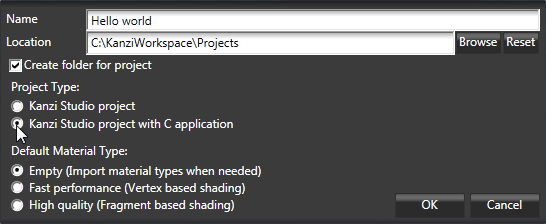
- Choose the name and location for your project.
For example, name your project Hello world. - In Project Type select Kanzi Studio project with C application.
Kanzi creates a Kanzi Studio project in <KanziWorkspace>/Projects/<ProjectName>/Tool_project directory and the structure for the Visual Studio solution for your project in <KanziWorkspace>/Projects/<ProjectName>/Application:
- bin directory contains the binaries and configuration files of your project.
- configs directory contains the configuration files for different platforms. By default Kanzi creates configuration files for Android and Windows operating systems. The recommended platform for developing Kanzi applications is Microsoft Visual Studio 2010.
- src contains the source code for your project.
Kanzi Studio creates the binary and configuration files from your Kanzi Studio project and stores them in <KanziWorkspace>/Projects/<ProjectName>/Application/bin. When you run your Kanzi application from Visual Studio, your Visual Studio solution reads these files to create your Kanzi application.

For example, if you named your Kanzi Studio project Hello world, Visual Studio solution is called Hello_world.sln.
/* Core logging */
#include <core/debug/kzc_log.h>
kzc_log.h header contains the functions that define the functionality for writing to Kanzi debug console.
KZ_CALLBACK static kzsError writeToLog(struct KzaApplication* application)
{
	/* Prints Hello world! to the Kanzi debug console. */
	kzsLog(KZS_LOG_LEVEL_INFO, "Hello world!");

	kzsSuccess();
}kzApplicationConfigure function call your writeToLog function when your Kanzi application loads.configuration->onProjectLoaded = writeToLog;
For example, select ES2_IMG_Debug solution configuration.

Function writeToLog prints Hello world! to the Kanzi debug console.
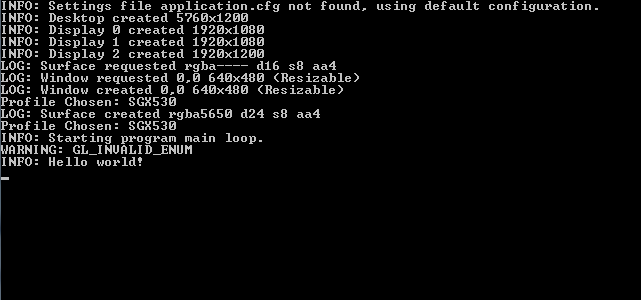
When in the debug mode, along with the Kanzi debug console, your Kanzi application is shown in the Kanzi player. Since by default a new Kanzi Studio project contains only a scene with a camera and a directional light, your application, shows an empty scene.